








A Step by Step Guide to posting pictures from your computer.
1. Go to Advanced Settings in your Reply or New post options.
2. Click on Attachments
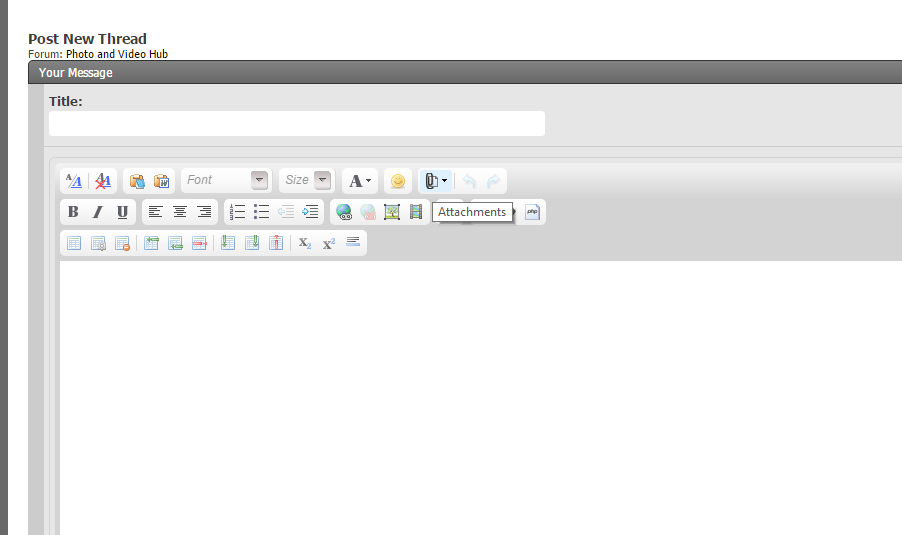
You can upload 3 attachments at a time.
3. Click on choose File, and choose the files you want to upload
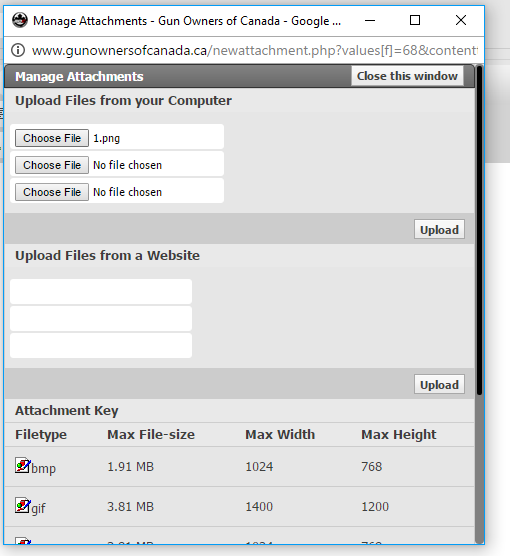
4. Click upload after you have chosen your files
5. Click the arrow side of the attachments and it will show the pictures uploaded, Pick the picture you want in the area you want it and click on it
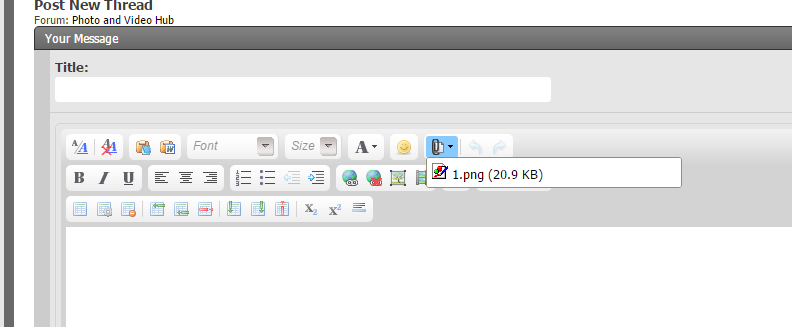
6. The picture will upload to your text area, it removed it you can delete it just like text (with your backspace key) It may show up as a smaller image, but once the thread is posted it will enlarge.
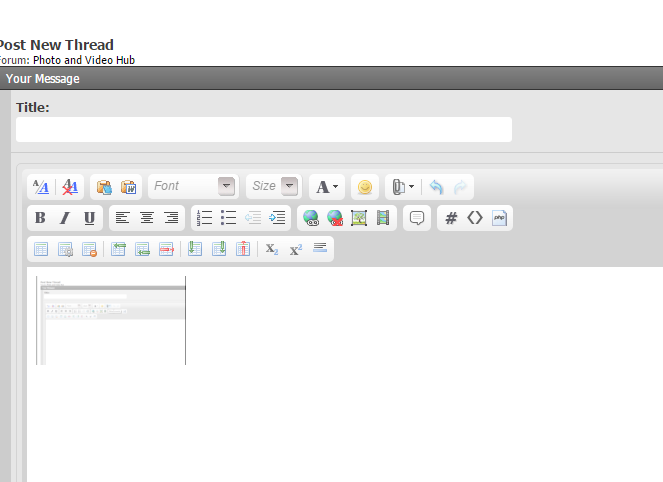
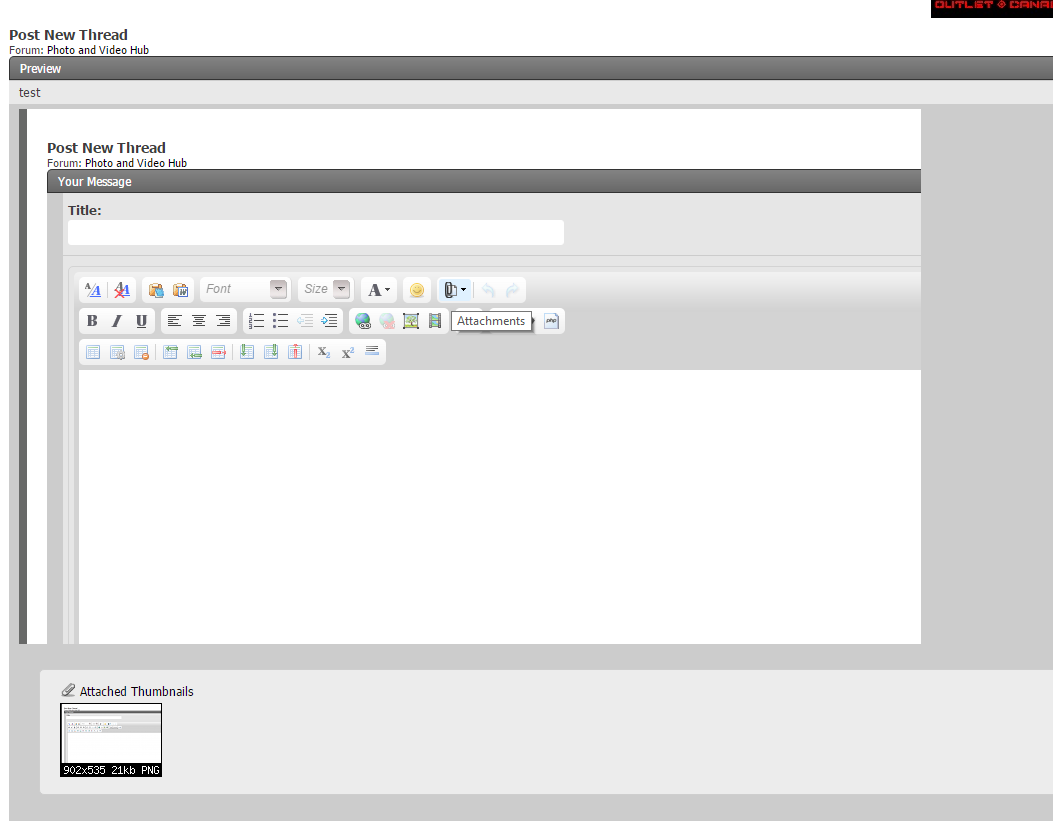
7. Click post reply or thread and your picture is added to your thread.
1. Go to Advanced Settings in your Reply or New post options.
2. Click on Attachments
You can upload 3 attachments at a time.
3. Click on choose File, and choose the files you want to upload
4. Click upload after you have chosen your files
5. Click the arrow side of the attachments and it will show the pictures uploaded, Pick the picture you want in the area you want it and click on it
6. The picture will upload to your text area, it removed it you can delete it just like text (with your backspace key) It may show up as a smaller image, but once the thread is posted it will enlarge.
7. Click post reply or thread and your picture is added to your thread.